Welcome to the January 2026 edition of What’s New in Microsoft 365 Copilot! Each month, we share the latest features and updates to help Microsoft 365 admins keep users productive and get the most out of the apps they use every day.
This month, we have a big update: the Microsoft 365 Roadmap has been refreshed! It’s now easier to track the latest announcements, from core apps to Copilot and its agents. Explore new features available now, see what’s coming soon, and check out the full roadmap for a complete view of what’s ahead.
User Capabilities
Agent Mode and New Agents
Agent mode in Word, Excel, and PowerPoint lets Copilot work alongside users to improve documents, spreadsheets, and presentations. It can respond to prompts, make edits, and explain its reasoning as it works. This gives users clear insight and control, so they can review, adjust, or guide the results at any time.
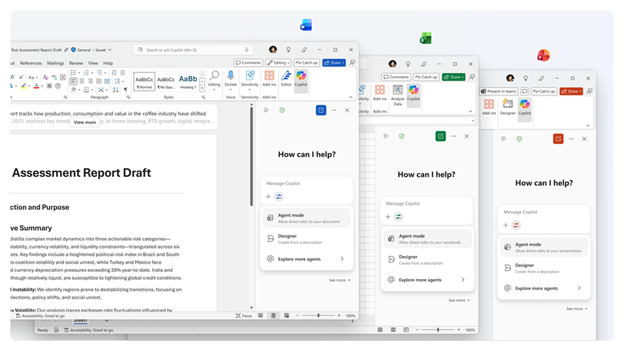
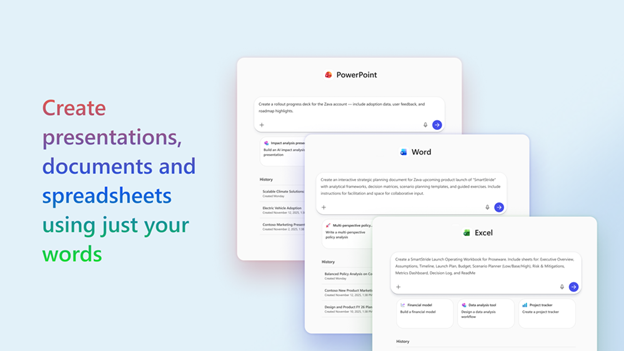
With Word, Excel, and PowerPoint Agents, creating new files is easier than ever. Users can give a single prompt in Copilot Chat, and Copilot will generate a full draft with proper structure, formatting, and details already included. Instead of starting from a blank page, users can quickly get polished documents, reports, or presentations that are ready to review and improve.
- Copilot Chat users: Standard access to Agent mode with web grounding.
- Microsoft 365 Copilot-licensed users: Priority access with both web and work grounding.
- For Copilot Chat users without a Microsoft 365 Copilot license, Agent mode in Word, Excel, and PowerPoint (web) are rolling out in February.
- For users with a Microsoft 365 Copilot license, Agent mode in Excel rolled out on Web in December and rolled out on Desktop and Mac in January, Agent mode in Word rolled out in November, and Agent mode in PowerPoint is rolling out in February on the web.
Voice Chats Can Reference Memory in the Microsoft 365 Copilot App
In the Microsoft 365 Copilot app, voice chats can now use memory. This means Copilot can draw on details you’ve already saved in your personalization settings to give more relevant and context-aware responses.
Your privacy and security are always protected. You cannot edit memories directly through voice chat, but all referenced memories are fully visible and manageable in your personalization settings.
This feature started rolling out in January.
Updates to Voice, Grounding, and Natural Language in Copilot for Outlook
Copilot in Outlook mobile now lets users interact with emails using voice. It can summarize unread emails and guide you through actions like drafting replies, deleting, archiving, pinning, or flagging—completely hands-free.
To use it, open Copilot from your Outlook mobile app home screen and tap “voice catch-up.”
This feature started rolling out on iOS in January and is rolling out on Android in February.
Implicit Grounding in Emails and Natural Language Actions in Copilot Chat for Outlook
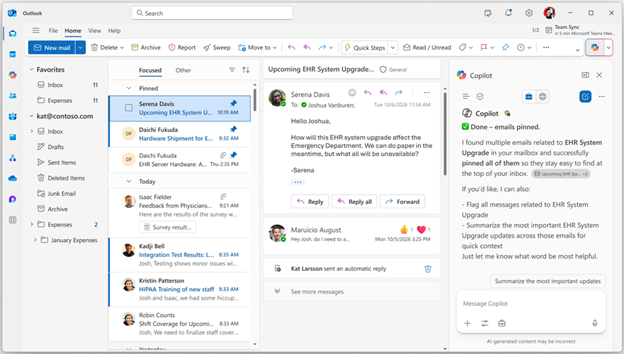
Copilot Chat in Outlook now automatically uses emails and selected text as context. When you open Copilot Chat alongside an email, the email content is added as a reference in the prompt box. If you highlight part of the email, Copilot will focus only on that text. This makes responses more accurate, reduces copy-paste steps, and helps you complete tasks faster with fewer mistakes. This feature rolled out in December.
Users can also take common email actions using natural language directly from Copilot Chat in Outlook or the Microsoft 365 Copilot app. You can mark messages as read or unread, pin or unpin, flag or unflag, and archive emails—all through simple prompts. For example, you can try:
- “Flag all unread emails from my manager”
- “Archive all emails related to [project name]”
This feature began rolling out in December and helps users stay organized and efficient.
Set Up Automatic Replies with Copilot Chat in Outlook
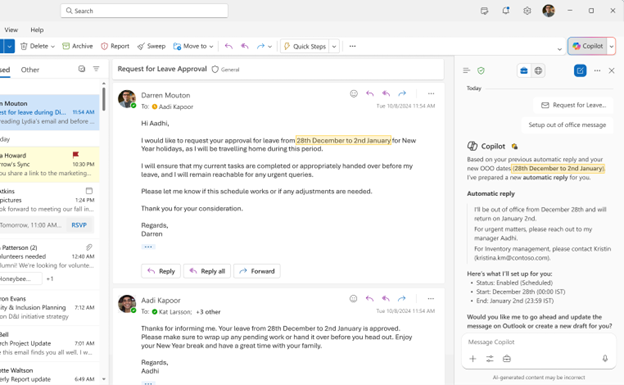
Users can now create and manage automatic replies using natural language in Copilot Chat for Outlook and the Microsoft 365 Copilot app. You can turn automatic replies on or off, set a date range, and draft the message using your usual writing style—all without navigating Outlook settings.
For example, you can try prompts like:
- “Set up an automatic reply for next Friday”
- “Turn off my automatic replies”
This feature started rolling out in December, making it easier to manage emails quickly and efficiently.
Ground Agents on a Copilot Notebook
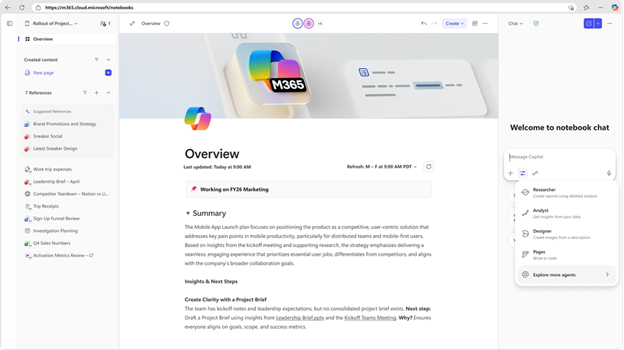
Users can now ground an agent on a Copilot Notebook, letting it work directly from your references and materials. Grounding helps the agent stay aligned with the context of your work, so responses are more relevant, consistent, and tailored to the information you’re using.
This feature is rolling out in February.
Locally Stored Modern Workbooks in Copilot for Excel
Copilot in Excel can now work with locally stored modern workbooks. This means users get faster and more consistent assistance across all their files, boosting productivity without needing to change how workbooks are saved.
This feature is rolling out in February.
View-Only Mode and Enterprise Assets in Copilot for PowerPoint
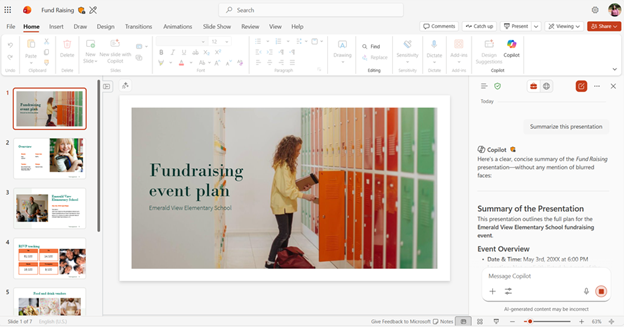
Users can now use Copilot in PowerPoint even when a presentation is in view-only mode. If you can only read or review a shared or read-only deck, Copilot can still help. You can ask questions about the presentation, get a summary of the content, or clarify specific slides—all without needing permission to edit the file.
This feature started rolling out in January, making it easier to understand and review presentations.
Automatic Use of Enterprise Assets in Copilot for PowerPoint
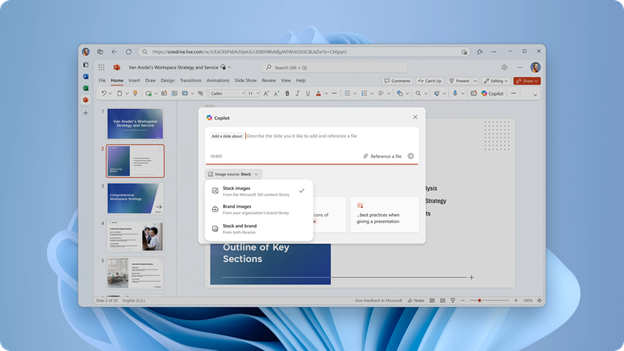
When creating slides with Copilot, PowerPoint can now automatically use approved enterprise assets from your organization’s SharePoint Organization Asset Library (OAL) or connected Templafy libraries. This means Copilot pulls trusted, on-brand images while generating slides, helping teams stay consistent without extra manual work.
Learn more about how to enable enterprise brand images with Copilot in PowerPoint.
More Control When Creating Presentations with Copilot in PowerPoint
Users now have greater control when making presentations with Copilot in PowerPoint. You can guide the deck’s length, choose the narrative tone, and select the overall slide style. You can also include AI-generated images to support your content. This makes it easy to tailor presentations for different audiences and purposes right from the first draft.
This feature rolled out in December.
Copilot Control System
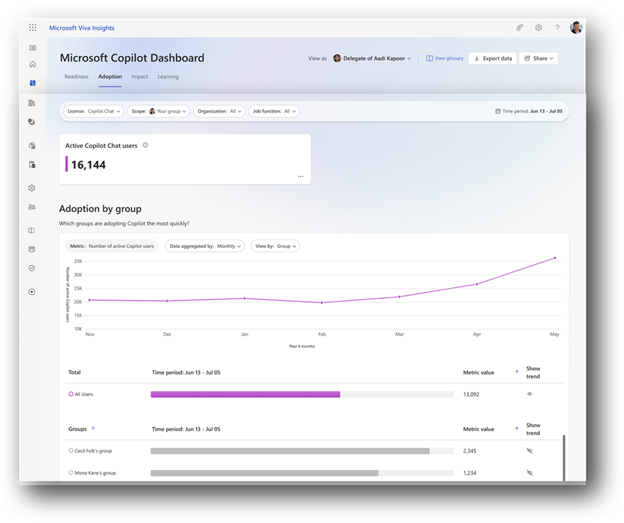
Expanded Availability of Copilot Chat Insights in Copilot Dashboard
Microsoft Viva is making Copilot Chat Insights in Copilot Dashboard available to more tenants. The minimum requirement of 50 Microsoft 365 Copilot licenses has been removed—now, even tenants with just one license can track adoption trends.
Insights include usage over time, group-level adoption, app breakdowns, retention, and more. Users can also filter by organizational attributes to spot patterns and better understand how Copilot is being used.
This feature is rolling out in February.
Drive Secure Adoption of Copilot with Microsoft Purview
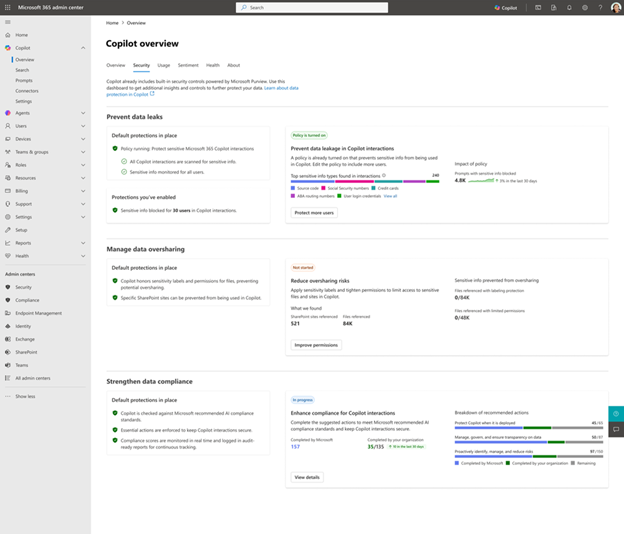
Security is a team effort, and AI or IT admins need a clear view to manage Copilot safely. Microsoft Purview is now integrated into the Microsoft 365 admin center to help admins ensure secure Copilot adoption.
In the security tab of the Copilot overview page, admins can:
- See and manage oversharing risks and take action to fix them
- Understand how sensitive data is used in Copilot interactions and set up DLP policies to protect it
- Strengthen data compliance and follow suggested actions to meet AI compliance standards
This feature rolled out in January.
New Overview and Readiness Report in Microsoft 365 Admin Center
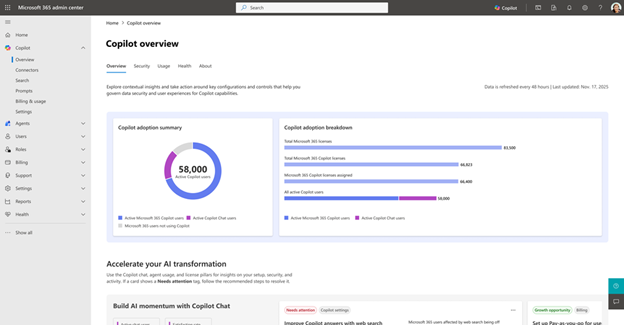
The redesigned Copilot overview page in the Microsoft 365 admin center gives admins a centralized, easy-to-understand view of Copilot across their organization.
This new experience brings together insights on environment status, configurations, and prioritized recommended actions for Copilot Chat, agents, and Microsoft 365 Copilot. It helps admins manage security, governance, controls, and reporting, making it easier for IT teams to assess readiness and drive successful Copilot adoption at scale.
This feature rolled out in January.
New Copilot Readiness Page in Microsoft 365 Admin Center
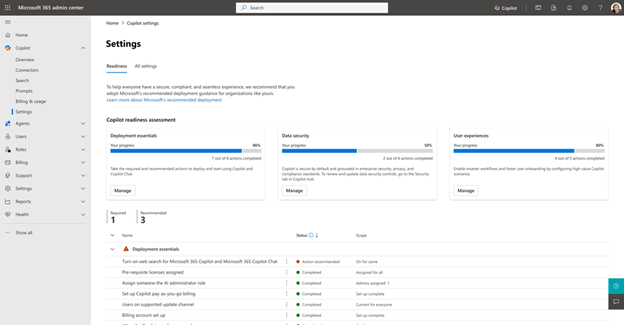
A new Copilot readiness page in the Microsoft 365 admin center helps admins bring structure and clarity to Copilot setup and rollout.
The page organizes Microsoft-recommended settings into clear categories: deployment essentials, end-user experience, and data security. Admins can easily see the scope, prioritize actions, and track progress. With completion status, user coverage insights, and guided recommendations all in one place, IT teams can plan, sequence, and deploy Microsoft 365 Copilot more confidently and consistently.
This feature rolled out in January.
Microsoft 365 Copilot is transforming the way organizations work, making everyday tasks faster, smarter, and more efficient across Word, Excel, PowerPoint, Outlook, and other Microsoft 365 apps. From Agent mode and voice-enabled interactions to secure deployment and detailed admin insights, these updates give users and IT teams the tools they need to stay productive while maintaining control and compliance.
As a Microsoft Gold Partner, Ctelecoms is perfectly positioned to help Saudi businesses of all sizes adopt Microsoft 365 Copilot and leverage the full suite of Microsoft solutions. Our experts guide organizations through planning, deployment, training, and ongoing support, ensuring your teams get the most out of Microsoft 365 while keeping data secure and processes optimized.
Make Copilot work for your business; partner with Ctelecoms to streamline adoption, boost productivity, and drive innovation across your organization.
Contact us!